
ISXEVE Setup: Step 3
Starting EverQuest 2 with ISXEVE
First launch and authentication
Launching the Game
To start EverQuest 2 with InnerSpace and ISXEVE attached, move your mouse to the Windows task bar tray, right click on the InnerSpace icon, and choose the "EverQuest 2 Default Profile":
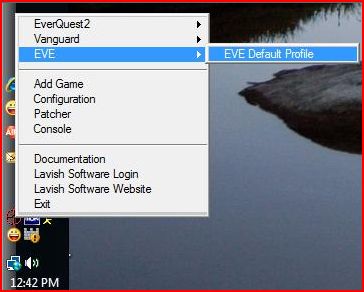
Figure 8: Right-click InnerSpace icon and select "EverQuest 2 Default Profile"
isxGames Authentication
Once the game has finished the initial loading procedure, the isxGames Authentication Utility window will appear, which looks like this:
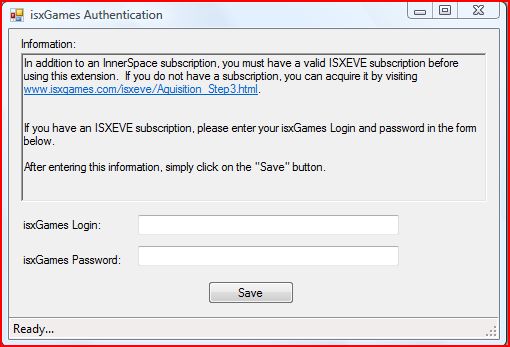
Figure 9: The isxGames Authentication Utility
Within this window, you will want to enter your isxGames Login ID (Username), and your isxGames Password. The Authenticator will then verify your subscription and will tell you so. If everything is good to go, you can "Close" the window.
Loading ISXEVE for the First Time
Since this is your first time using ISXEVE, and since you had to go through the isxGames authentication procedure, ISXEVE will unload itself. So, now, in game, hit your tilde (~) key and type "ext ISXEVE" in the InnerSpace console. ISXEVE should then patch itself and load normally.
And that's it! You've successfully set up ISXEVE and are ready to start using it.