
ISXEVE Setup: Step 1
Adding EVE Online to InnerSpace
Configuring the game launcher
Now that you have InnerSpace installed, ISXEVE installed, and subscriptions purchased to each product, you are now ready to setup InnerSpace to use ISXEVE. The next few pages on this site will guide you through this process.
First, confirm that InnerSpace is currently running by double-clicking on the icon that was placed on your desktop during the InnerSpace installation. Then, move your mouse to your Windows task bar tray, right click on the InnerSpace icon, and choose "Add Game".
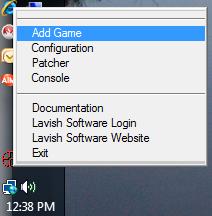
Figure 1: Right-click InnerSpace icon and select "Add Game"
At that point, a dialog box will appear. You should enter the information similarly to what you see below; however, you will want to make sure that the path to "eve-online.exe" matches what is installed on your system. (You can click on the "..." button to browse to your EVE Online installation directory.)

Figure 2: Enter game information and path to eve-online.exe
Once you have entered the proper information, click on "OK" (which will close the dialog box).