
ISXEVE Setup: Step 2
Configuring InnerSpace to Load ISXEVE
Setting up automatic extension loading
Now that you have added EVE Online to the InnerSpace launcher, you will now want to configure InnerSpace so that it loads ISXEVE automatically when the game begins.
First, move your mouse to the Windows task bar tray and, once again, right click on the InnerSpace icon and choose "Configuration".
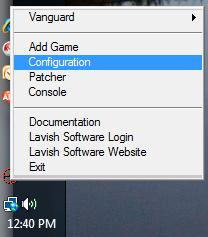
Figure 3: Right-click InnerSpace icon and select "Configuration"
At this point, a very confusing looking window will appear. Just ignore most of what you see, and click on the tab that is marked "Game Configuration". Once you do that, a drop down box will appear. From that box, select "EVE" or "EVE Online". Once you've done that, you should see a box that looks like this:
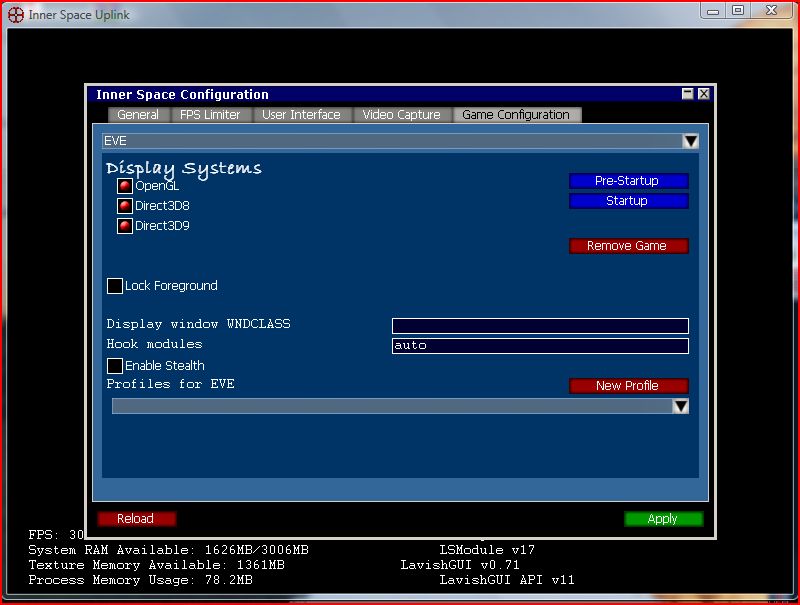
Figure 4: Select the Game Configuration tab and choose EVE
Now, go to the drop down box that's at the bottom marked "Profiles for EVE" and select "EVE Default Profile". At that point, the following box should pop up:
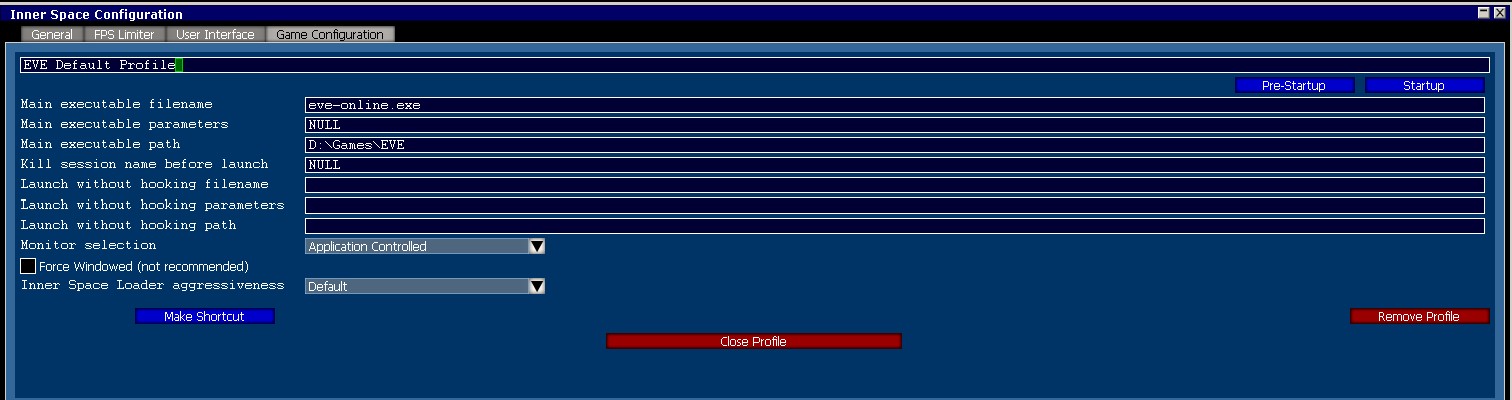
Figure 5: Select "EVE Default Profile"
From here, click on the button marked "Startup", which will bring up a new window. Then, click on the button marked "Insert". Once you've done that, you should see a box that looks like this:
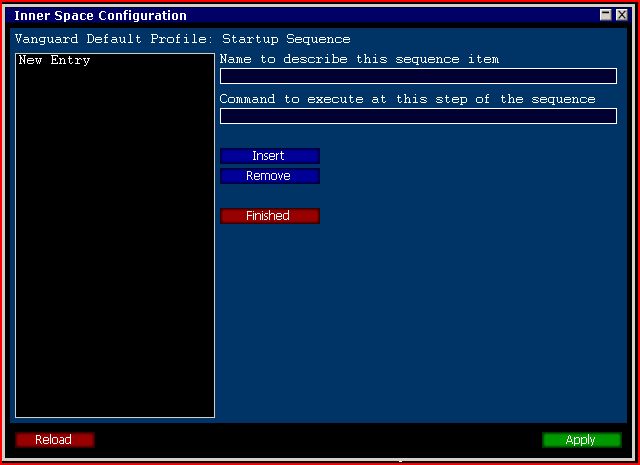
Figure 6: Click Startup, then Insert to add a new entry
Then, click on the text marked "New Entry" to highlight it, then move your mouse over to the two text entry boxes, and fill them in to look like what you see below:
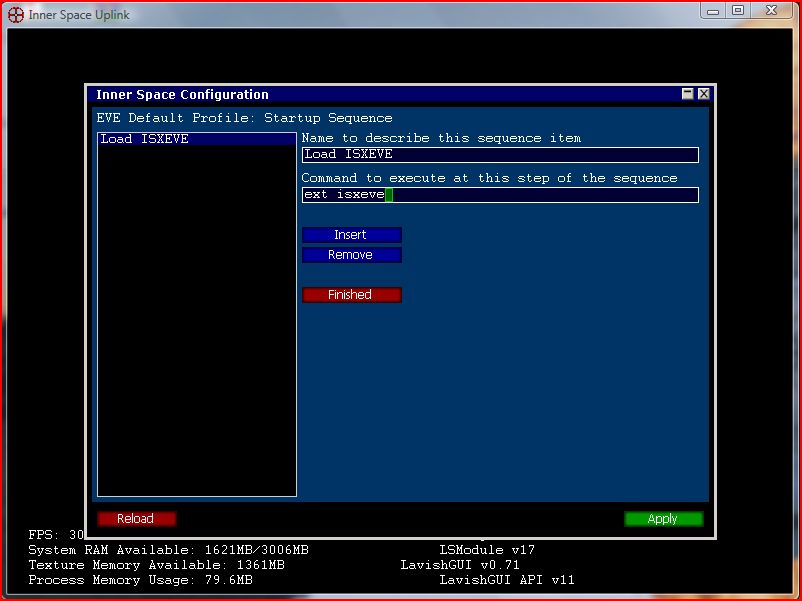
Figure 7: Configure the extension to load ISXEVE
At that point, click on the "Finished" button. Then, click on the "Close Profile" button. Then, click on the "Apply" button. Finally, you can close the InnerSpace console window entirely and then you're ready to move to step 3.